
12 May 2026
UX Case Study
Rocket Mortgage - AI Document Processing System
The mortgage process involves handling large volumes of sensitive documents, making accuracy, speed, and efficiency critical for both customers and internal teams. To simplify this complex workflow, Rocket Mortgage introduced an AI-powered Document Processing System designed to automate document verification, classification, and data extraction.
This case study highlights the UX journey behind creating a seamless and intelligent platform that reduces manual effort, accelerates processing time, and improves operational accuracy. By combining AI capabilities with user-centered design principles, the solution was crafted to help teams review documents faster, minimize errors, and deliver a smoother experience throughout the mortgage approval process.

Introduction
My goal was to make the workflow simple, fast, and clear for agents who review and validate loan documents.”
Objective of the Flow
“The main purpose of this flow is to help agents:
Upload documents easily
Let AI classify and extract information
Allow manual corrections whenever needed
Complete the final approval with full confidence
This reduces processing time and improves accuracy.”
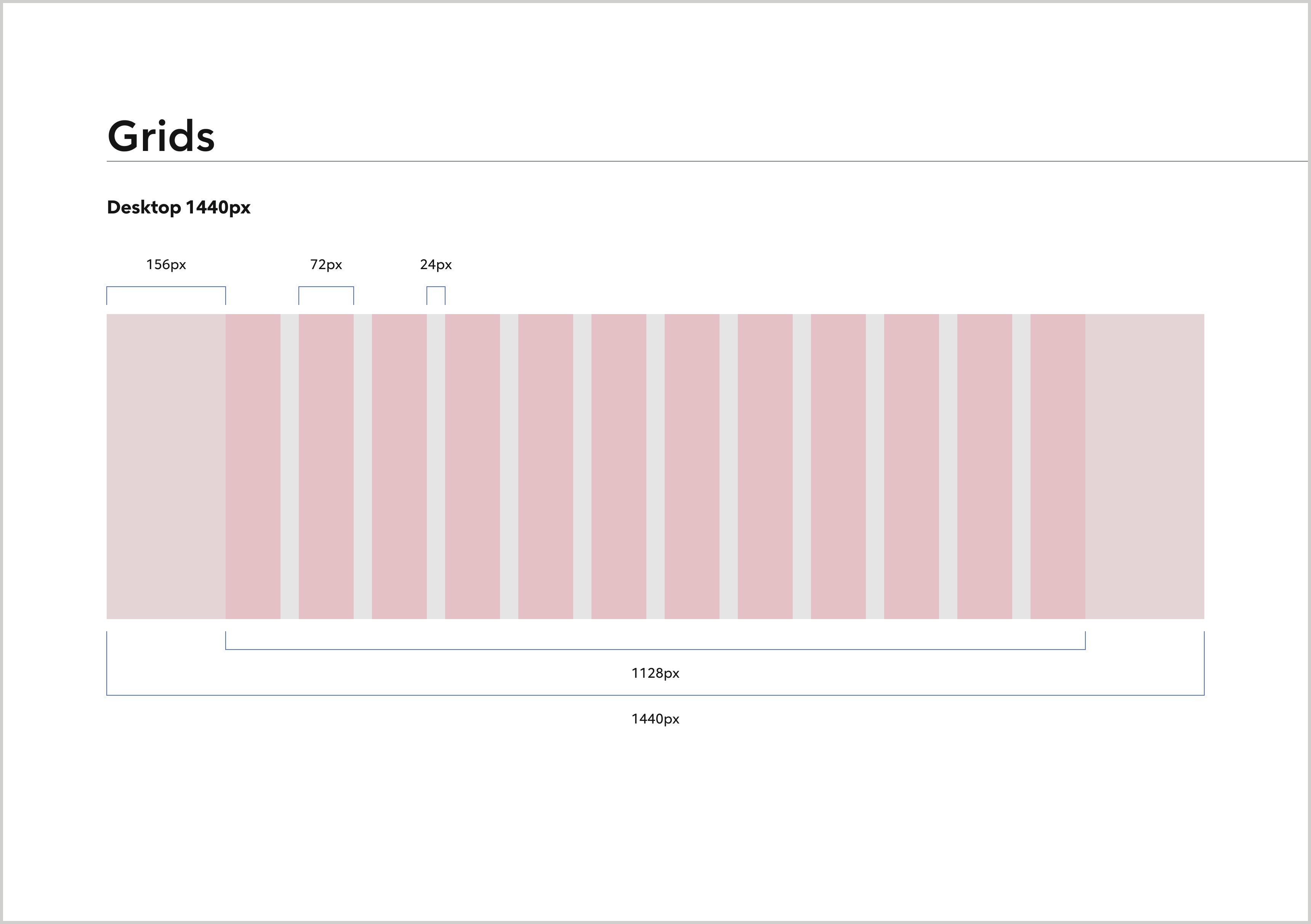
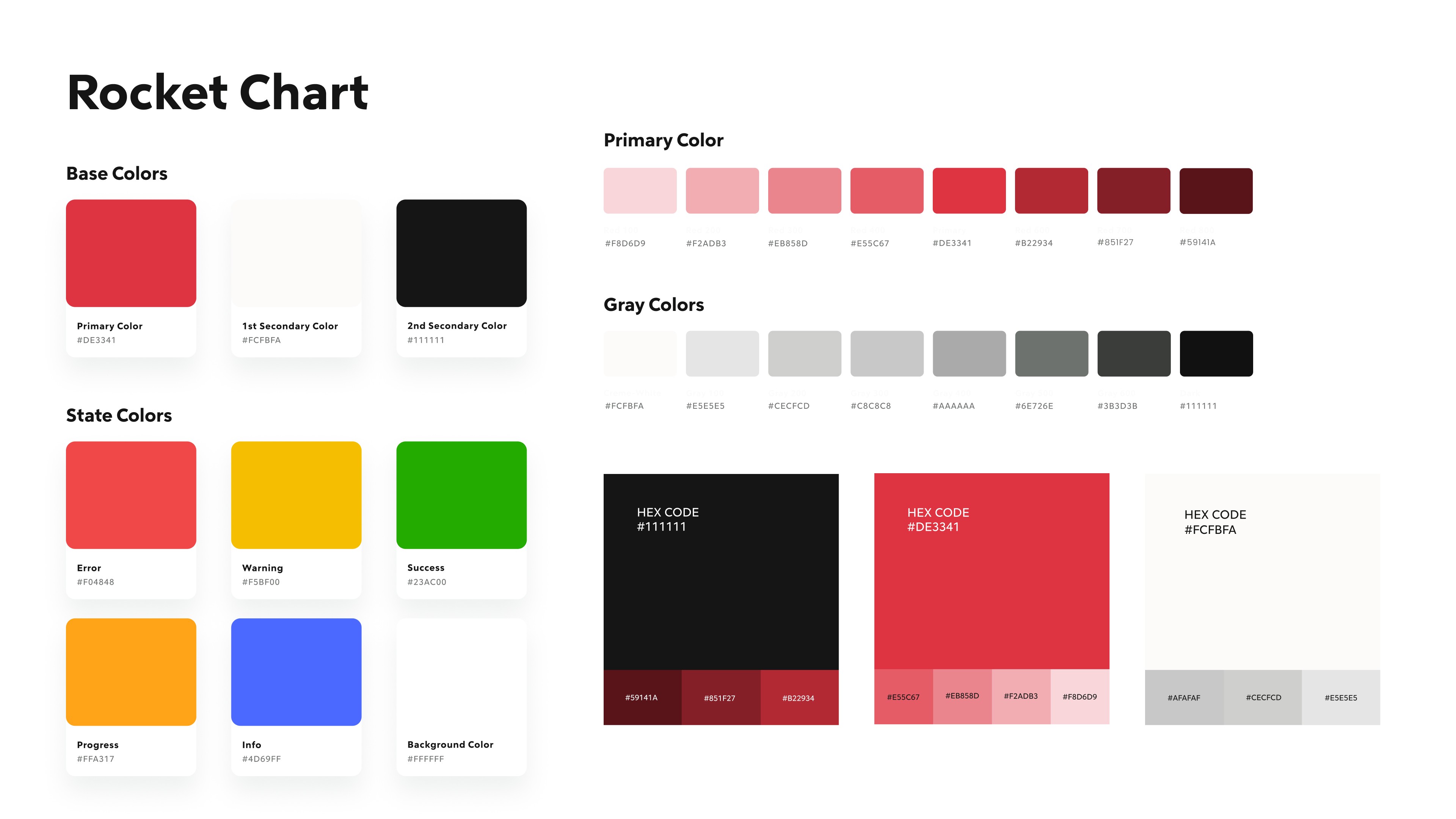
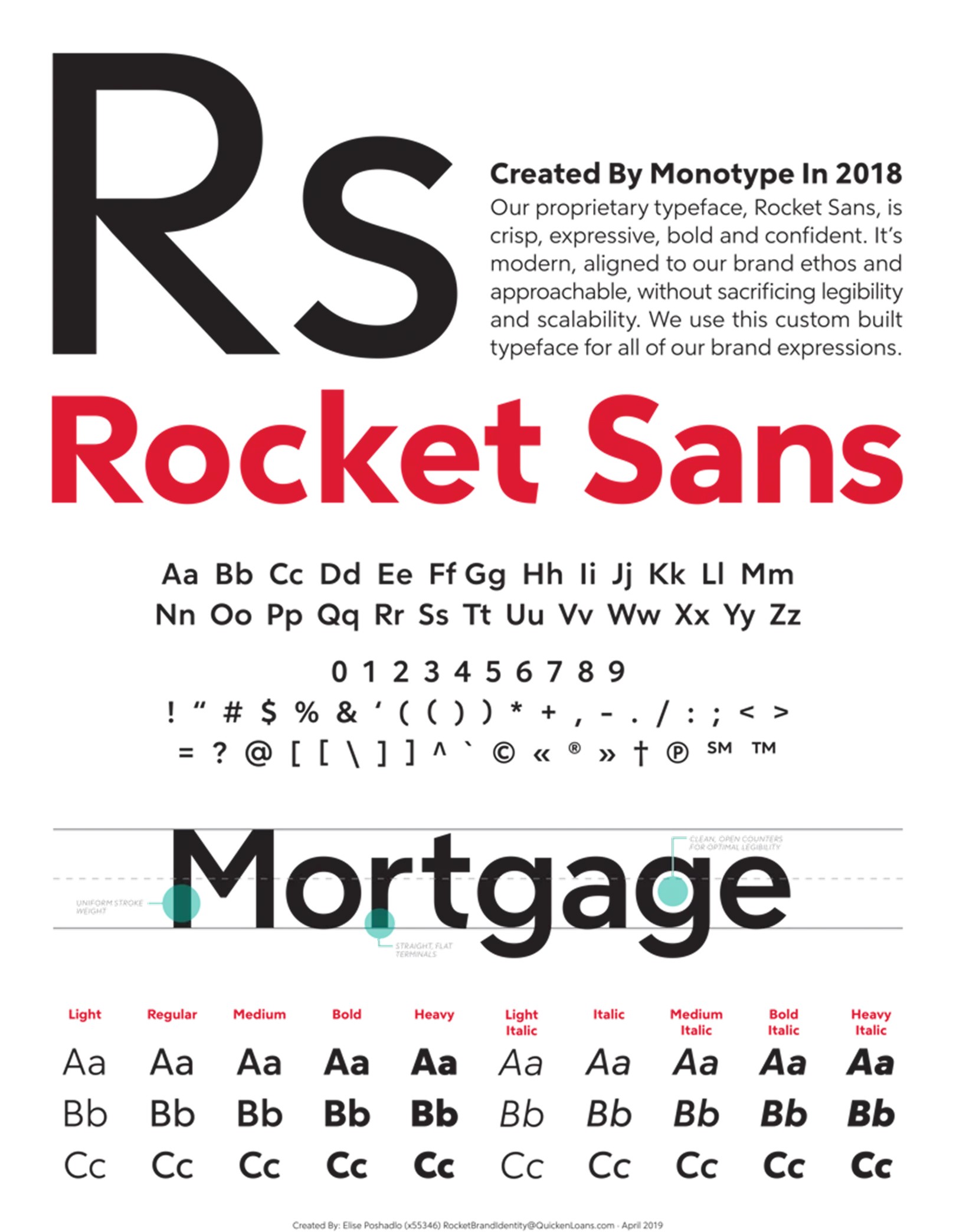
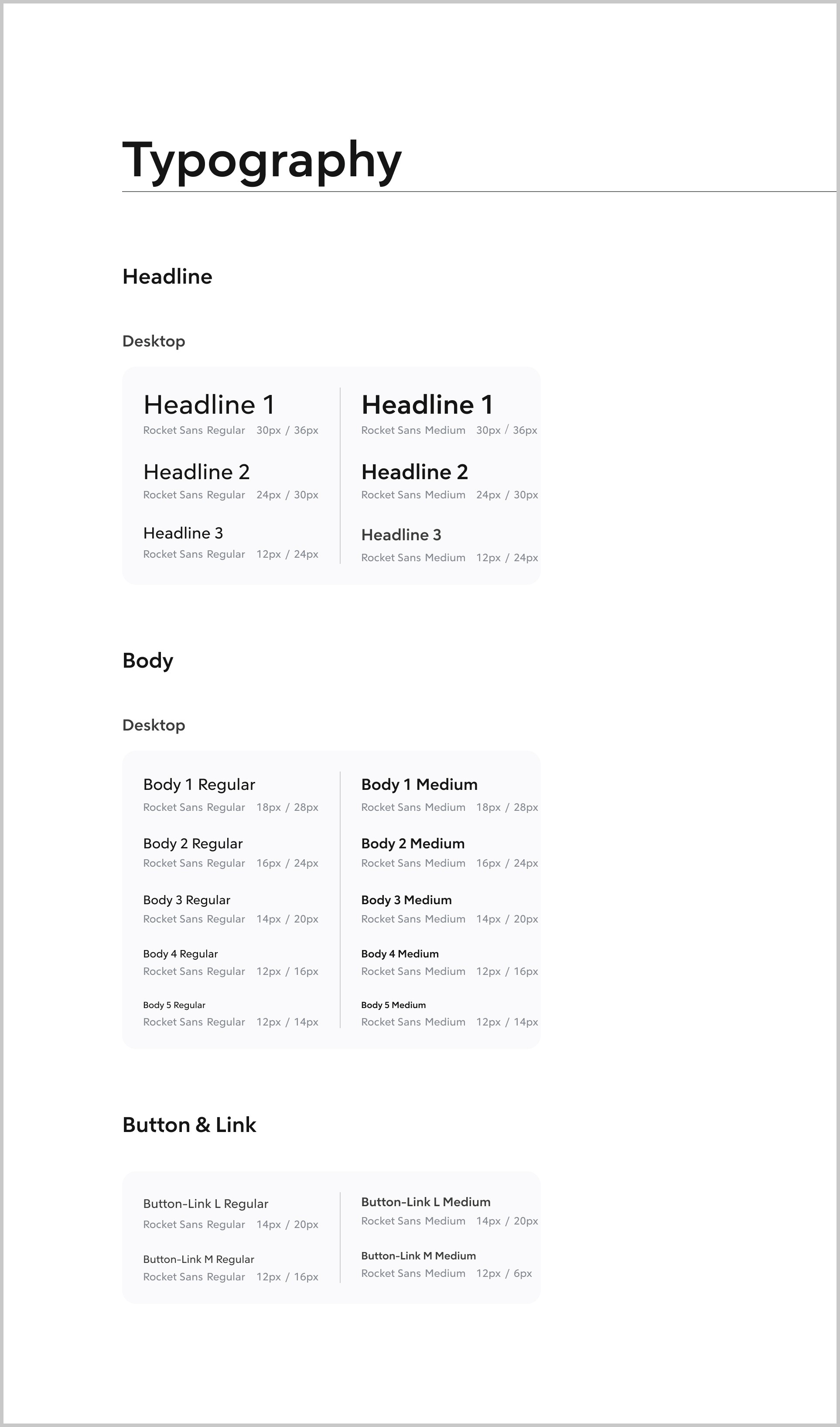
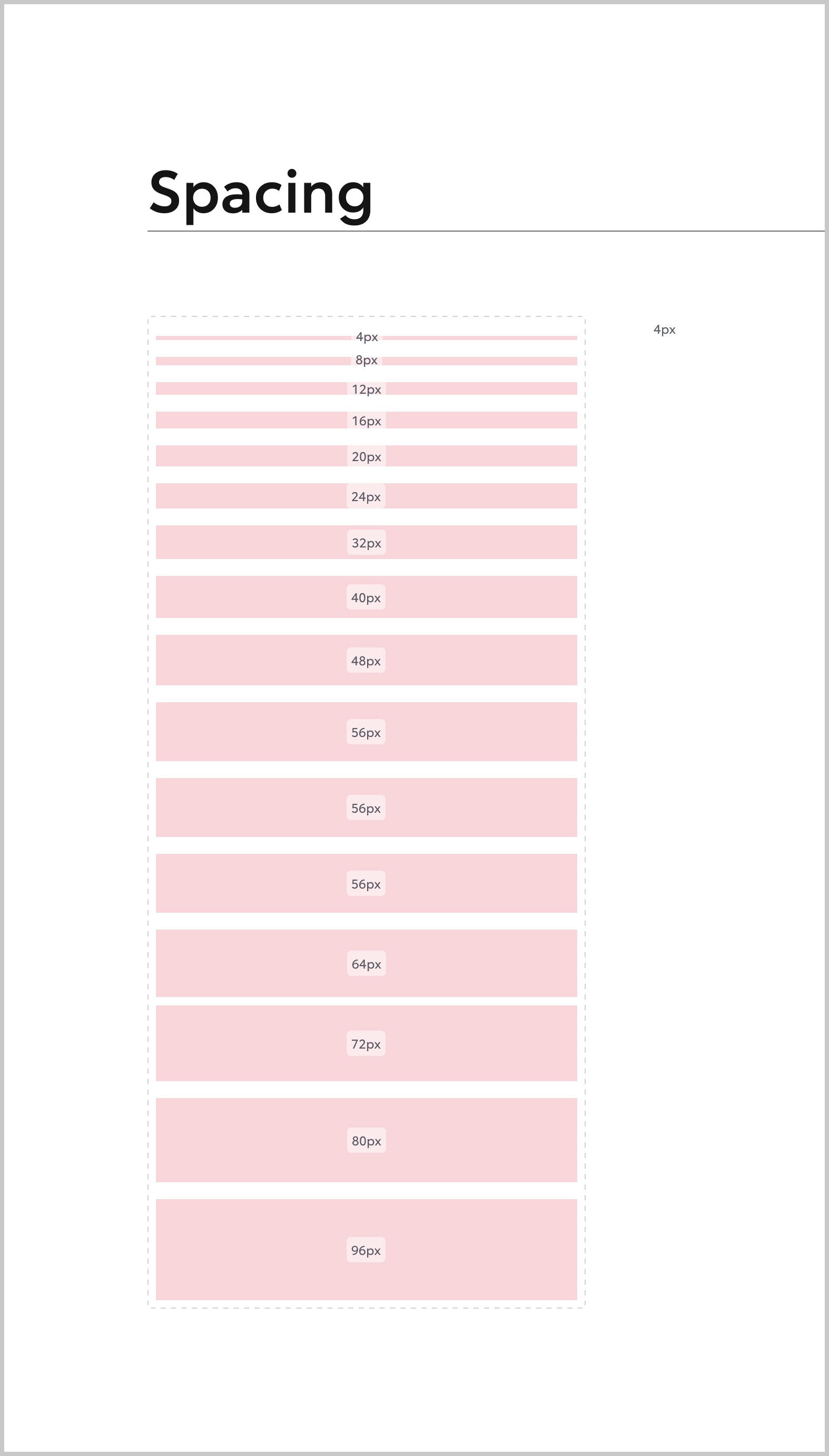
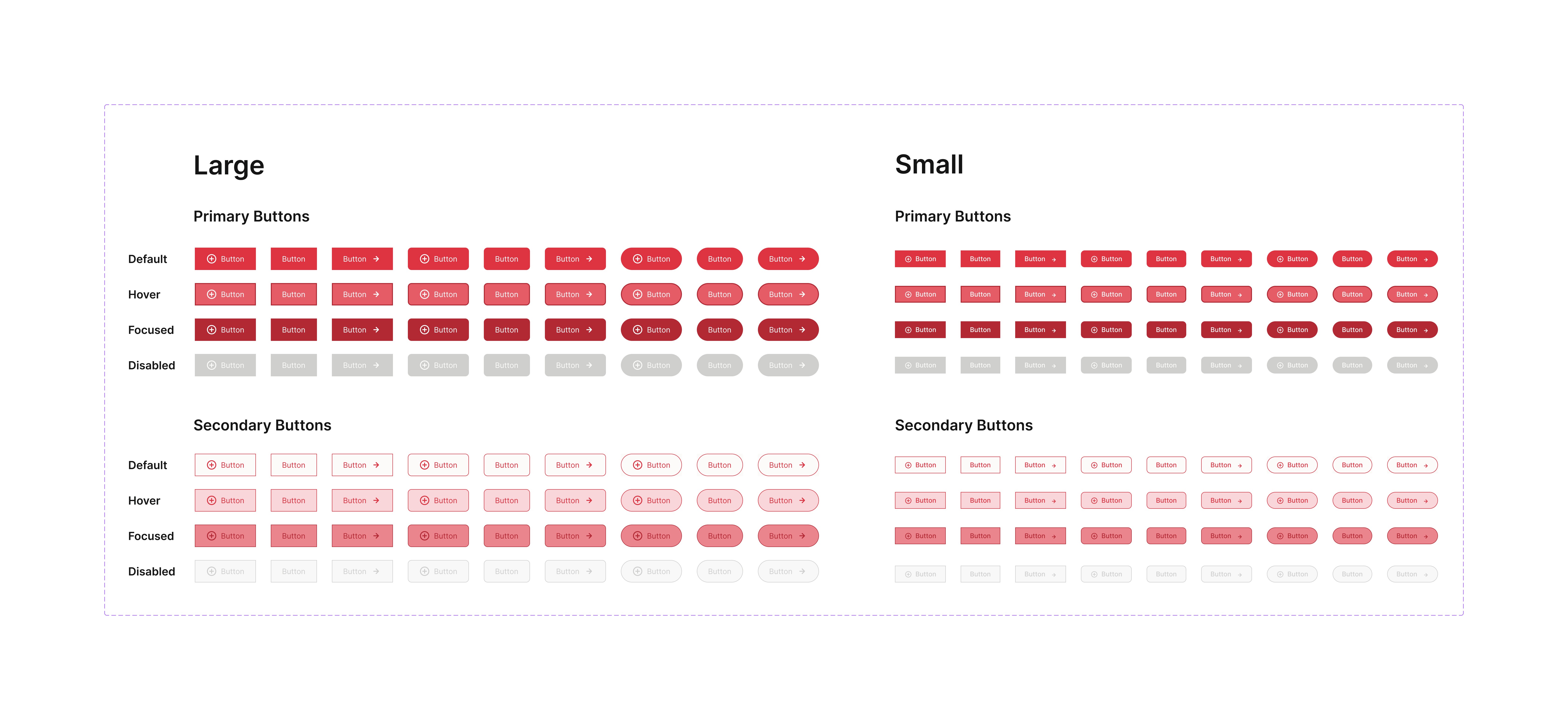
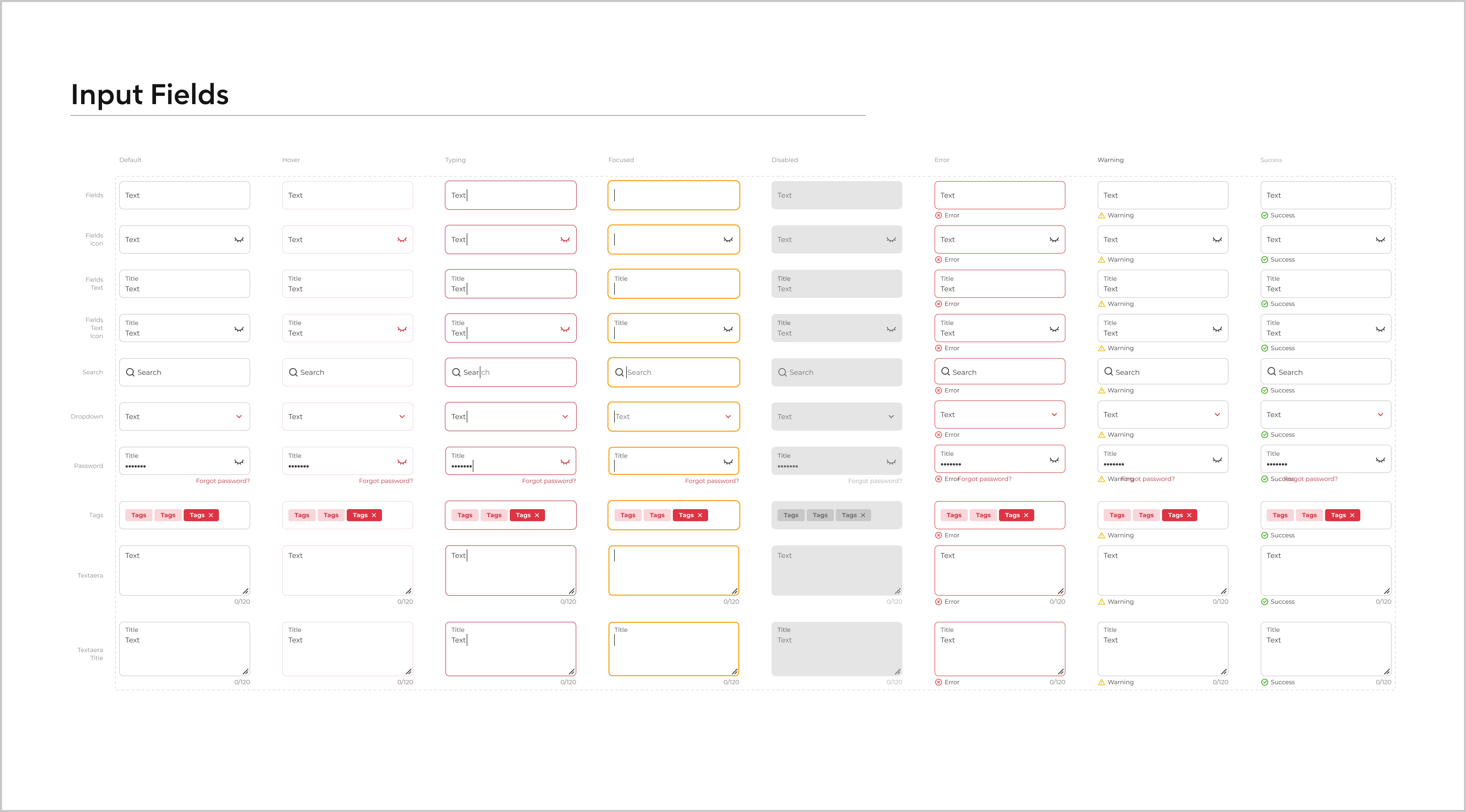
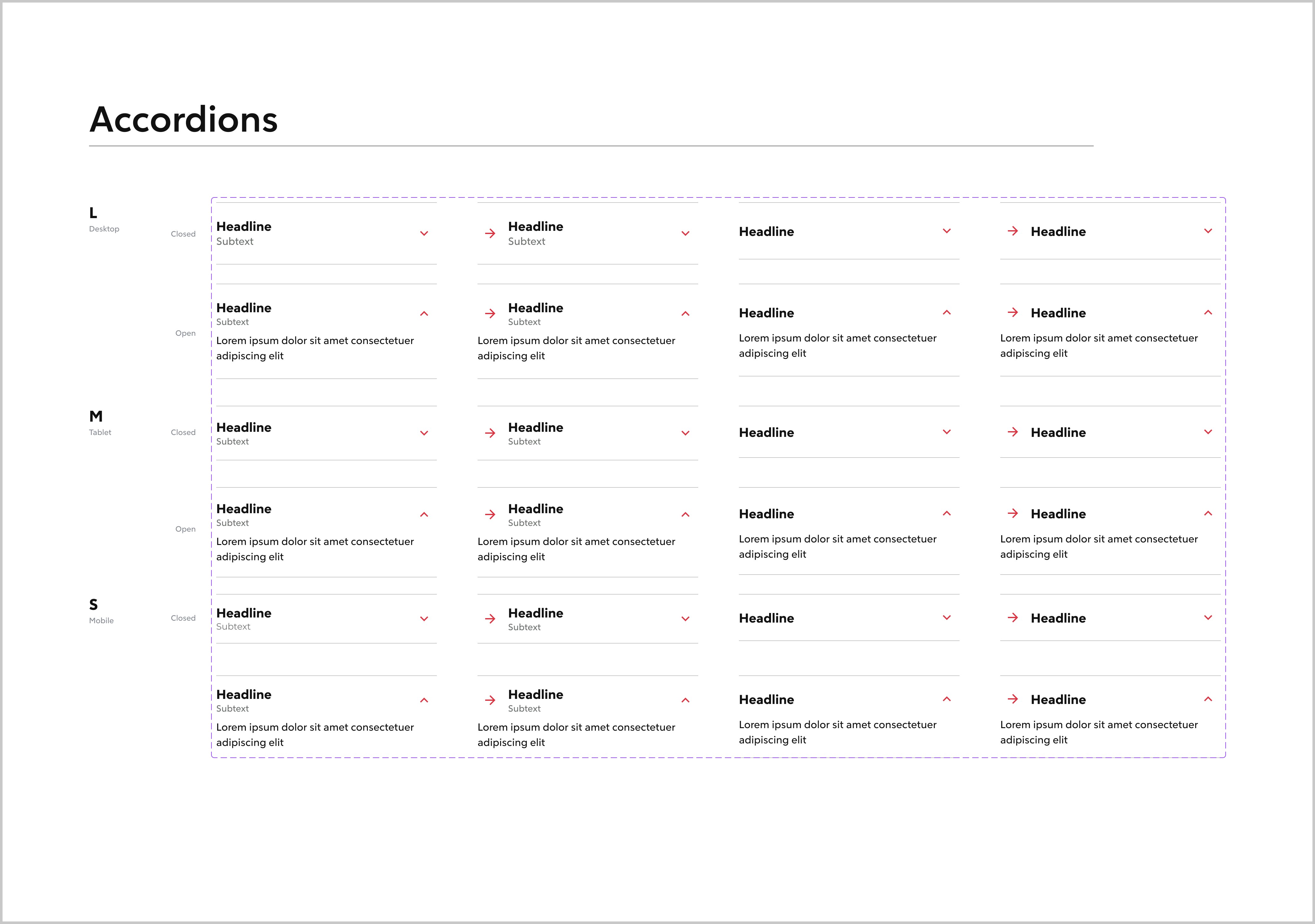
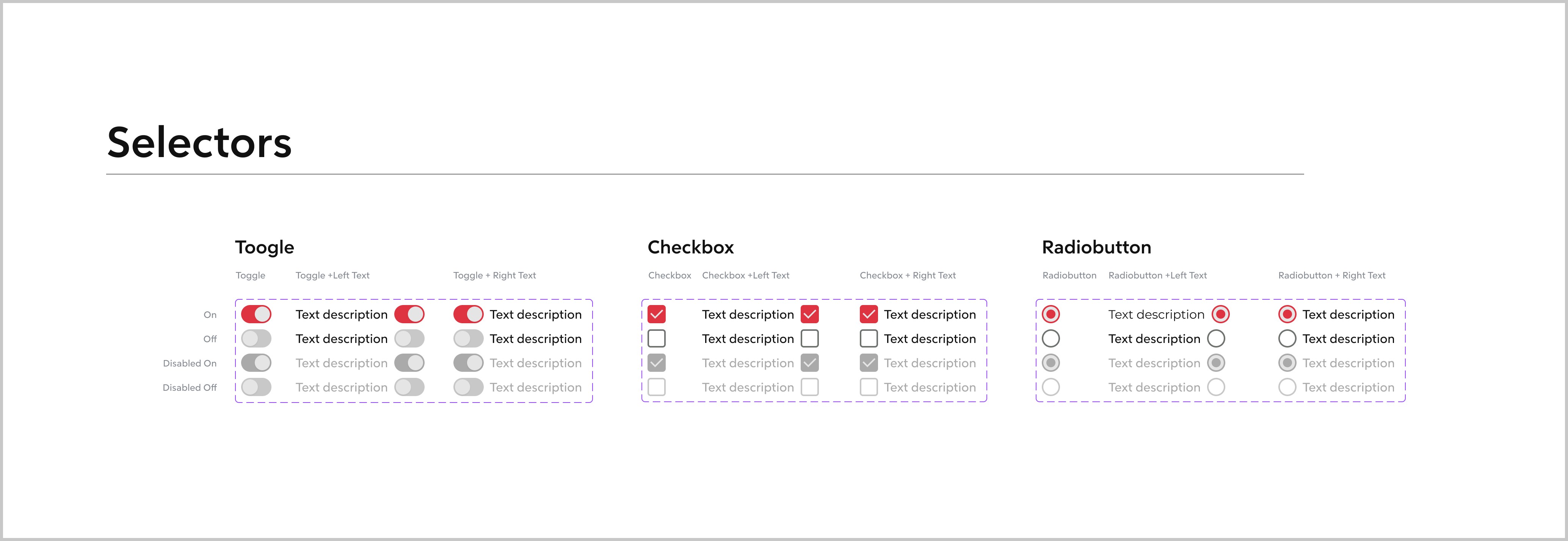

Img. Design System
Starting Point - Login
“The flow starts when the agent logs in and enters the dashboard.”
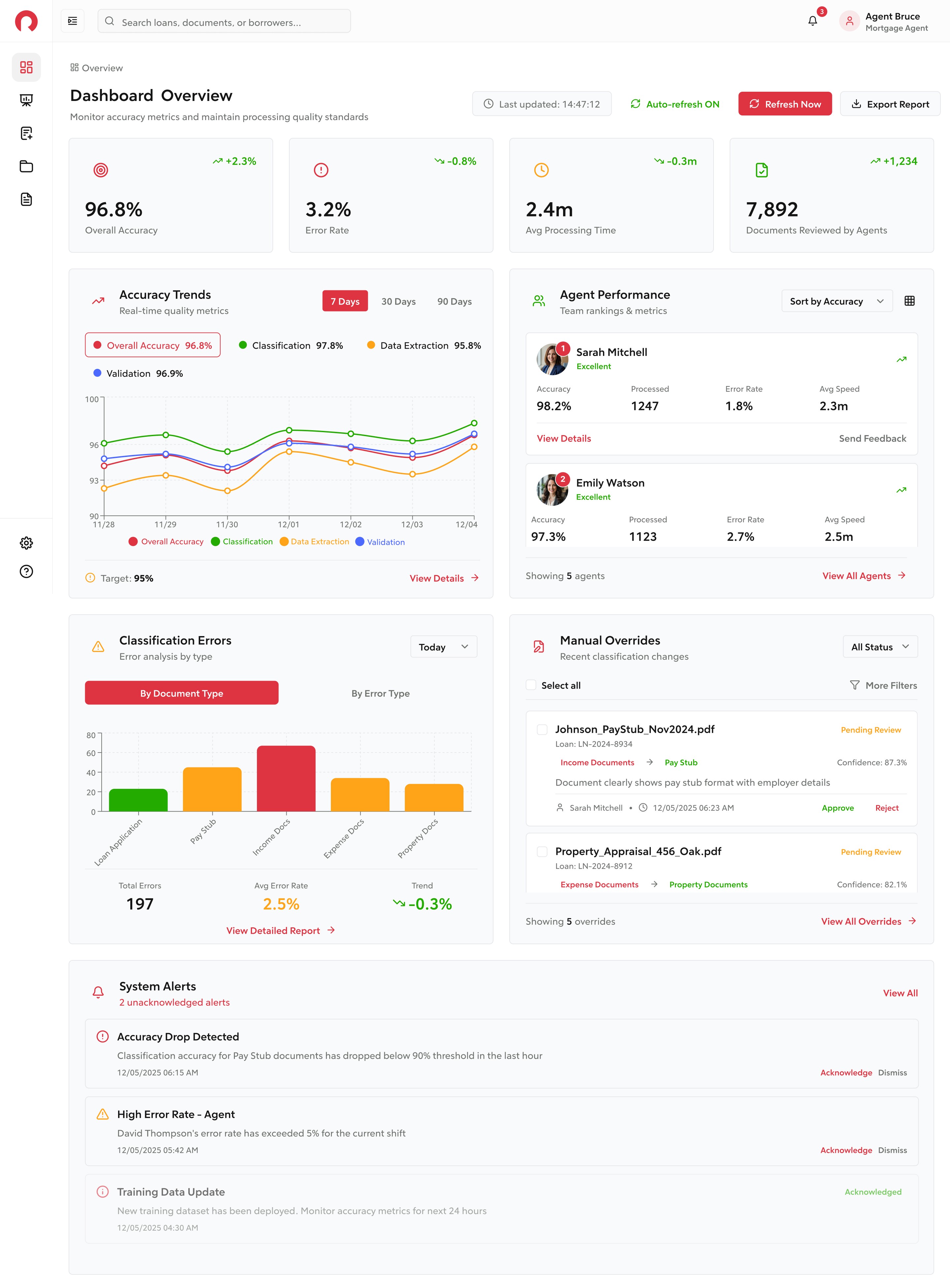
Rocket AI – Agent Dashboard
“On the dashboard, agents see all key metrics like overall accuracy, error rate, processing time, and system alerts.
This gives them a quick understanding of system performance and where action is needed.”
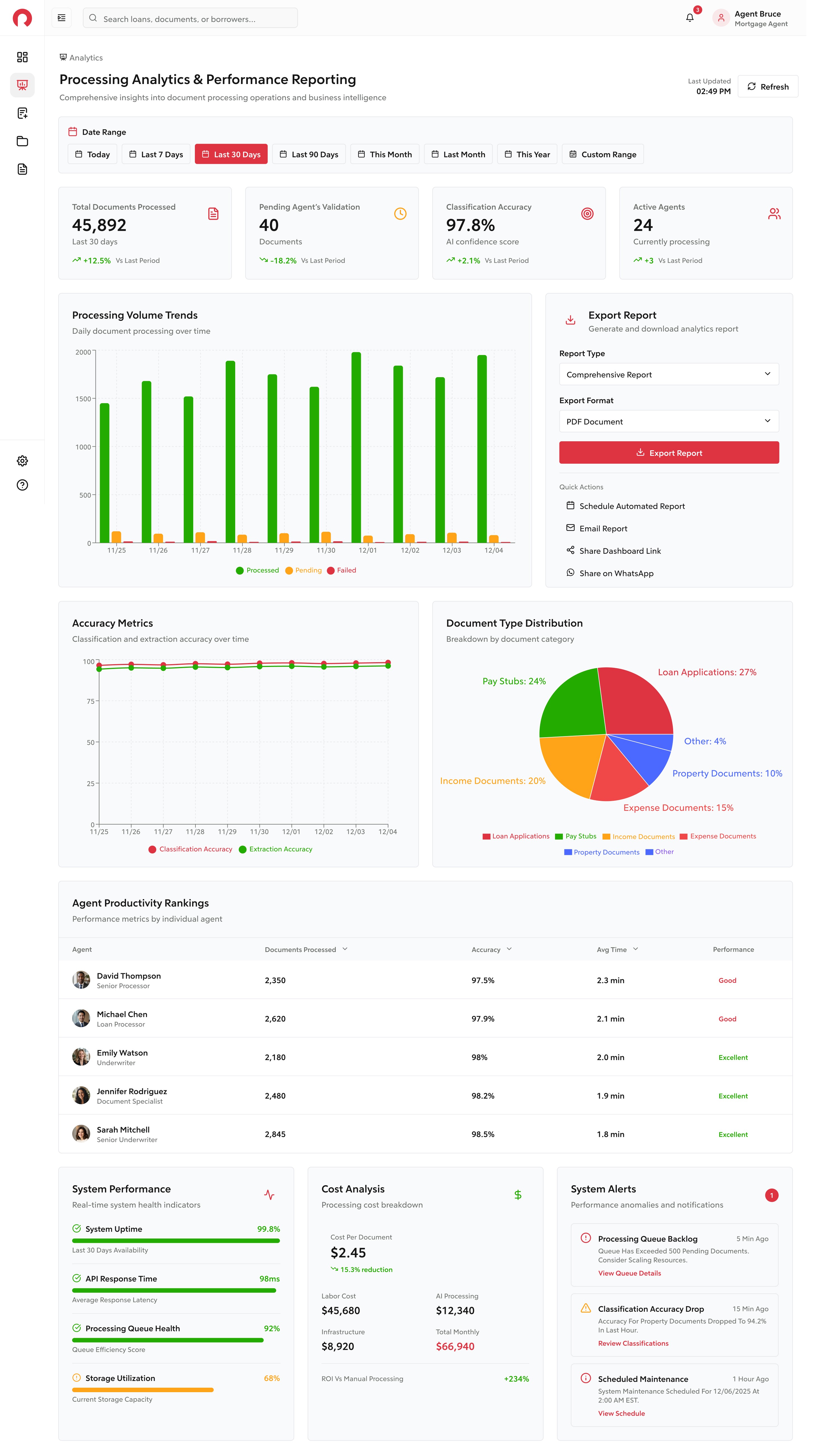
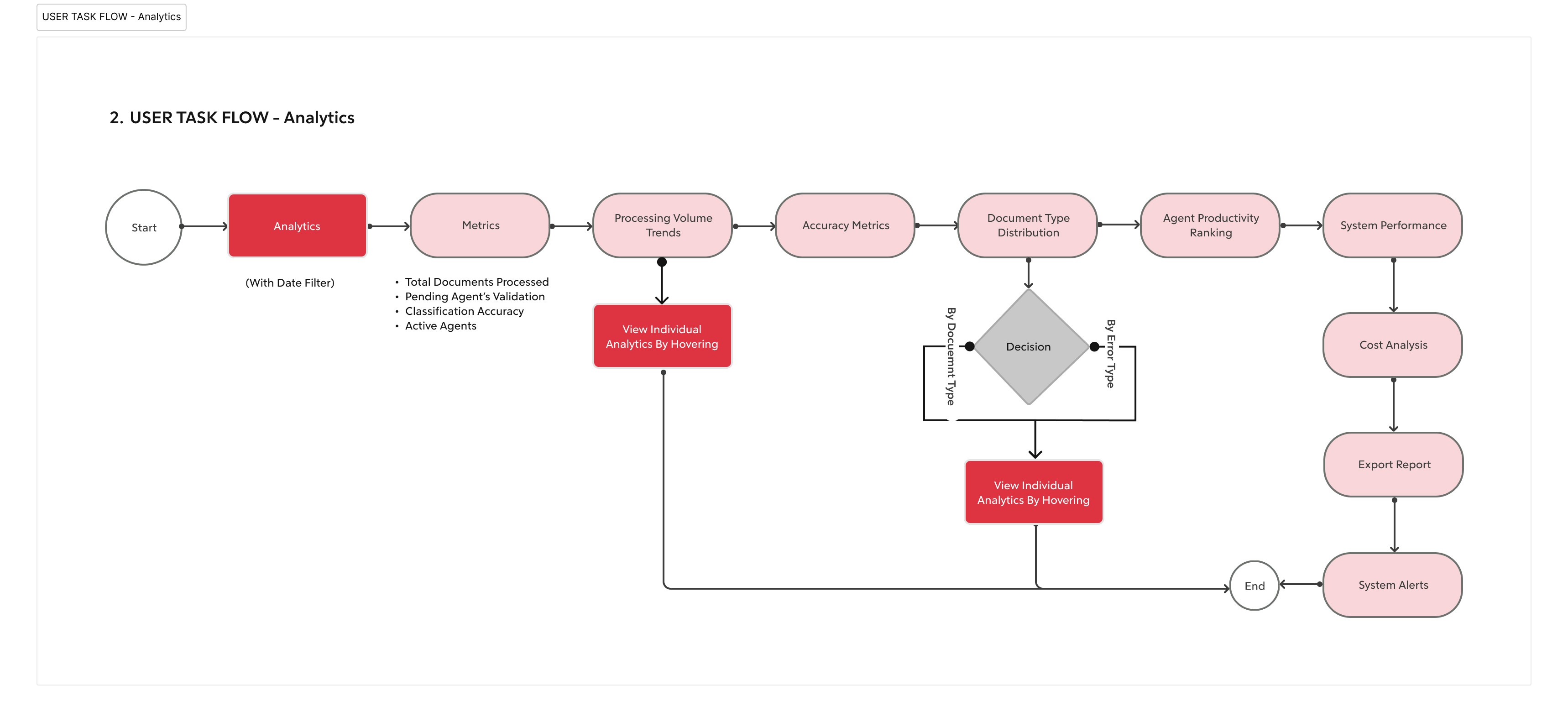
Optional – Analytics Page
“If needed, the agent can open the Analytics page to deep-dive into trends:
processing volume, document distribution, agent performance, and cost analysis.
This helps in identifying issues and optimizing operations.”
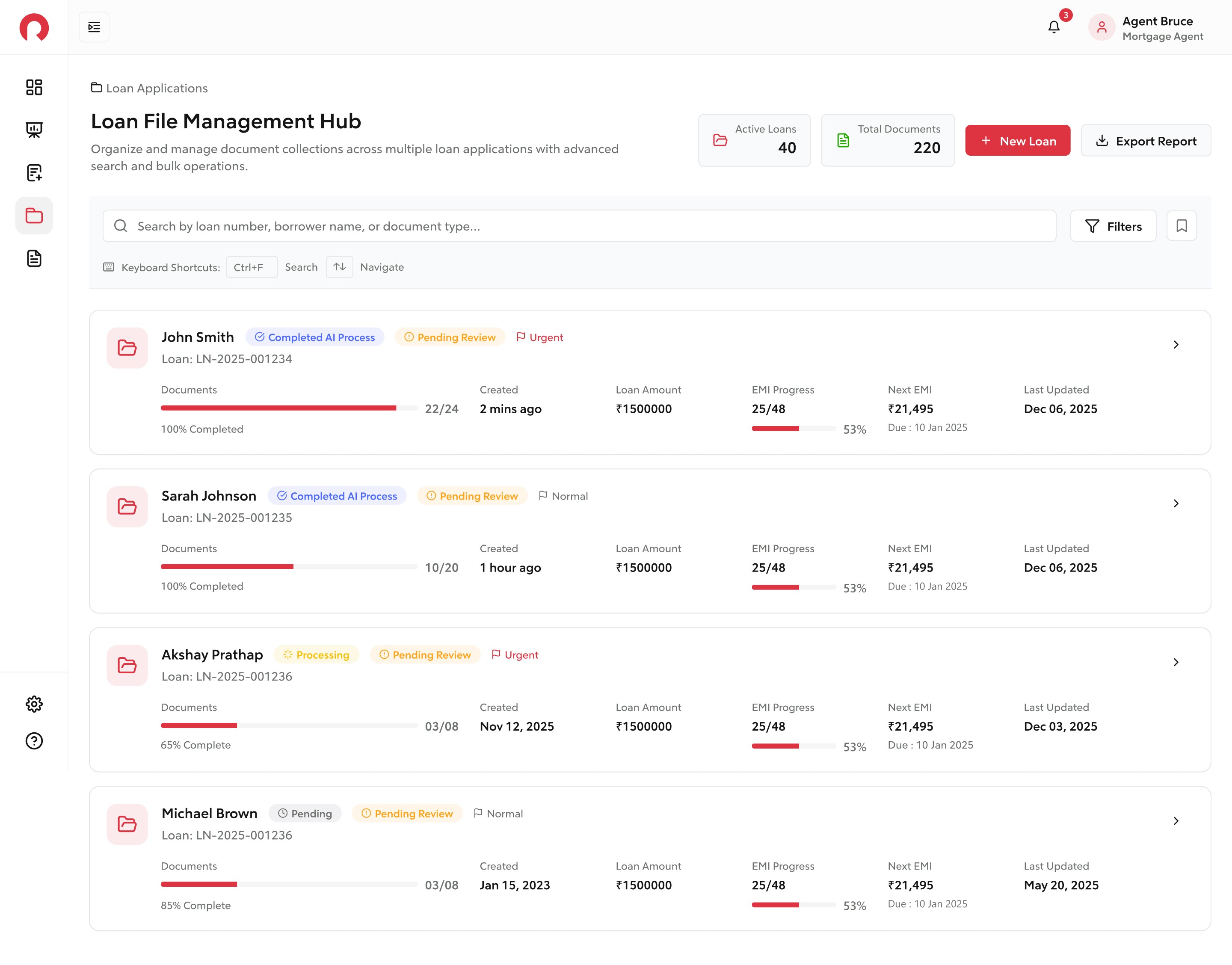
Loan Applications Page
“Next, the agent moves to the Loan Applications page.
Here, they can see total loans, total documents, and they can search by loan number, borrower name, or document type.”
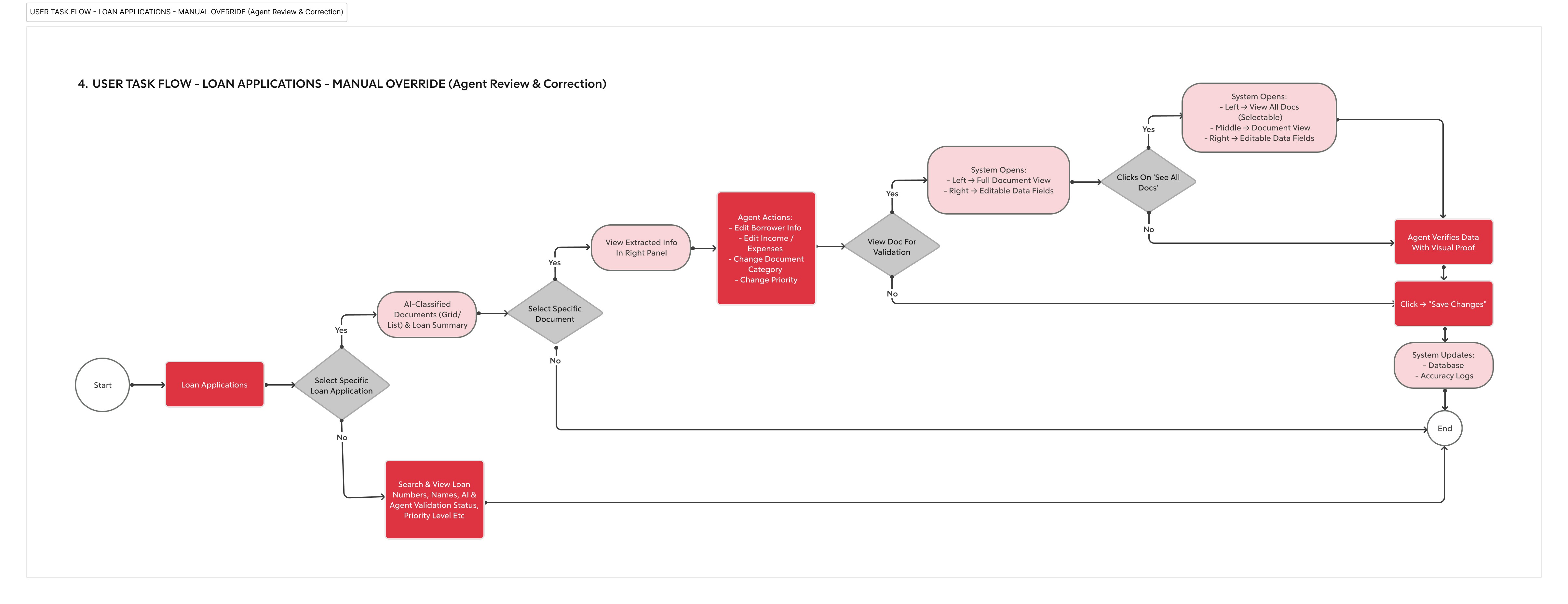
Selecting a Specific Loan
“The agent selects a loan to review all the documents AI has processed for that loan.”
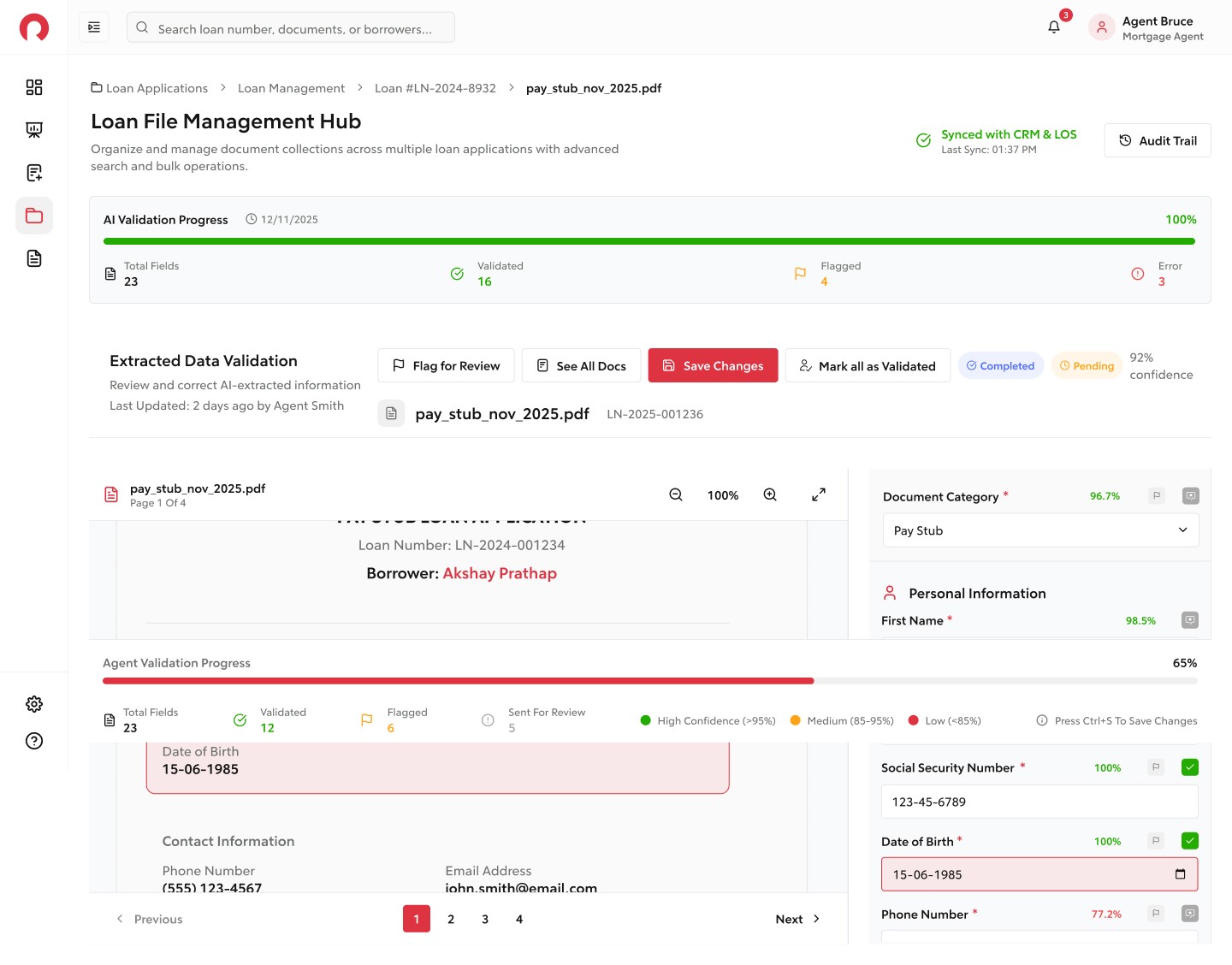
AI-Classified Documents Page
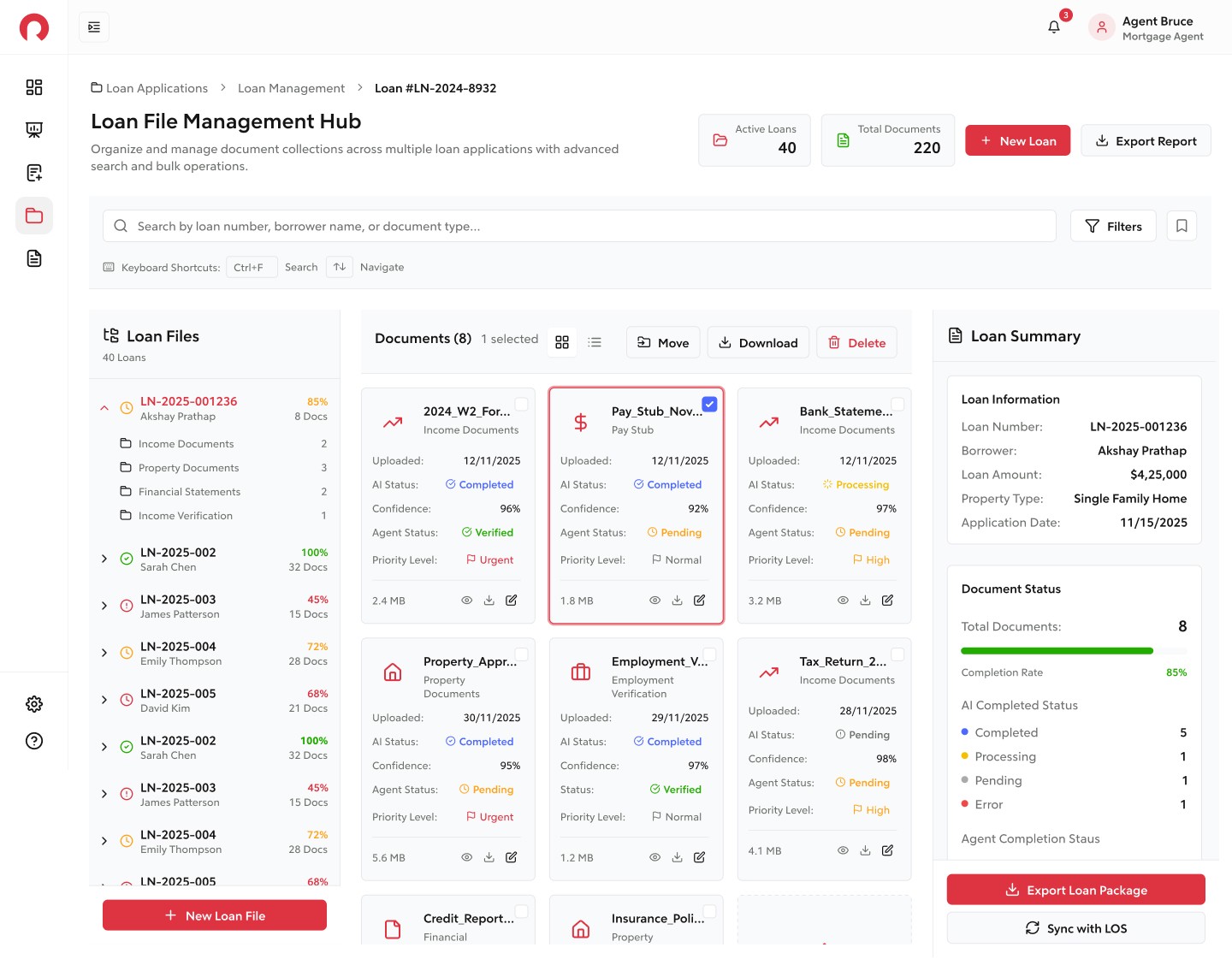
“This page displays all AI-classified documents in a grid or list view.
The agent can view, edit, move, change priority, or download documents.
This gives full control before going into detail.”
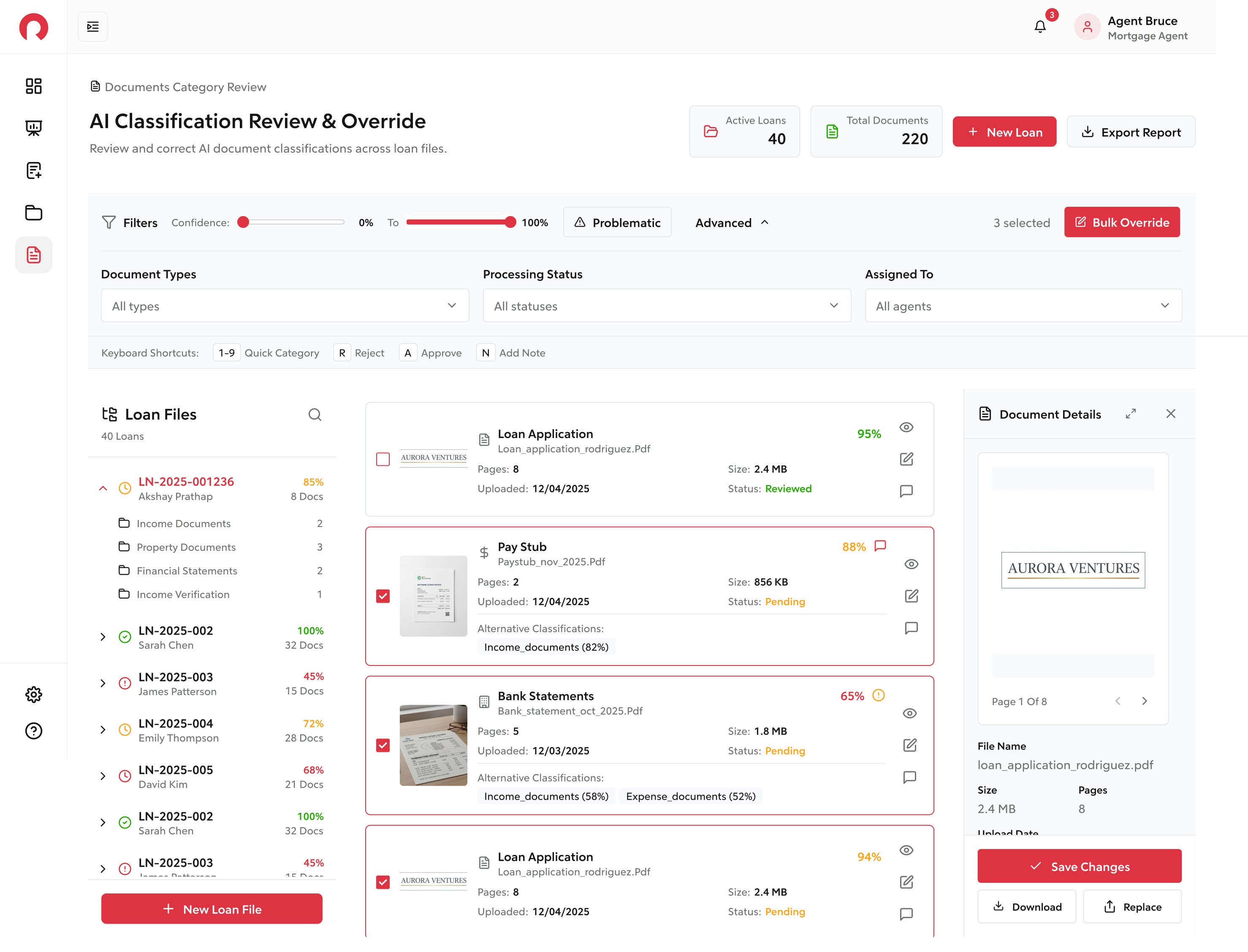
Opening a Document
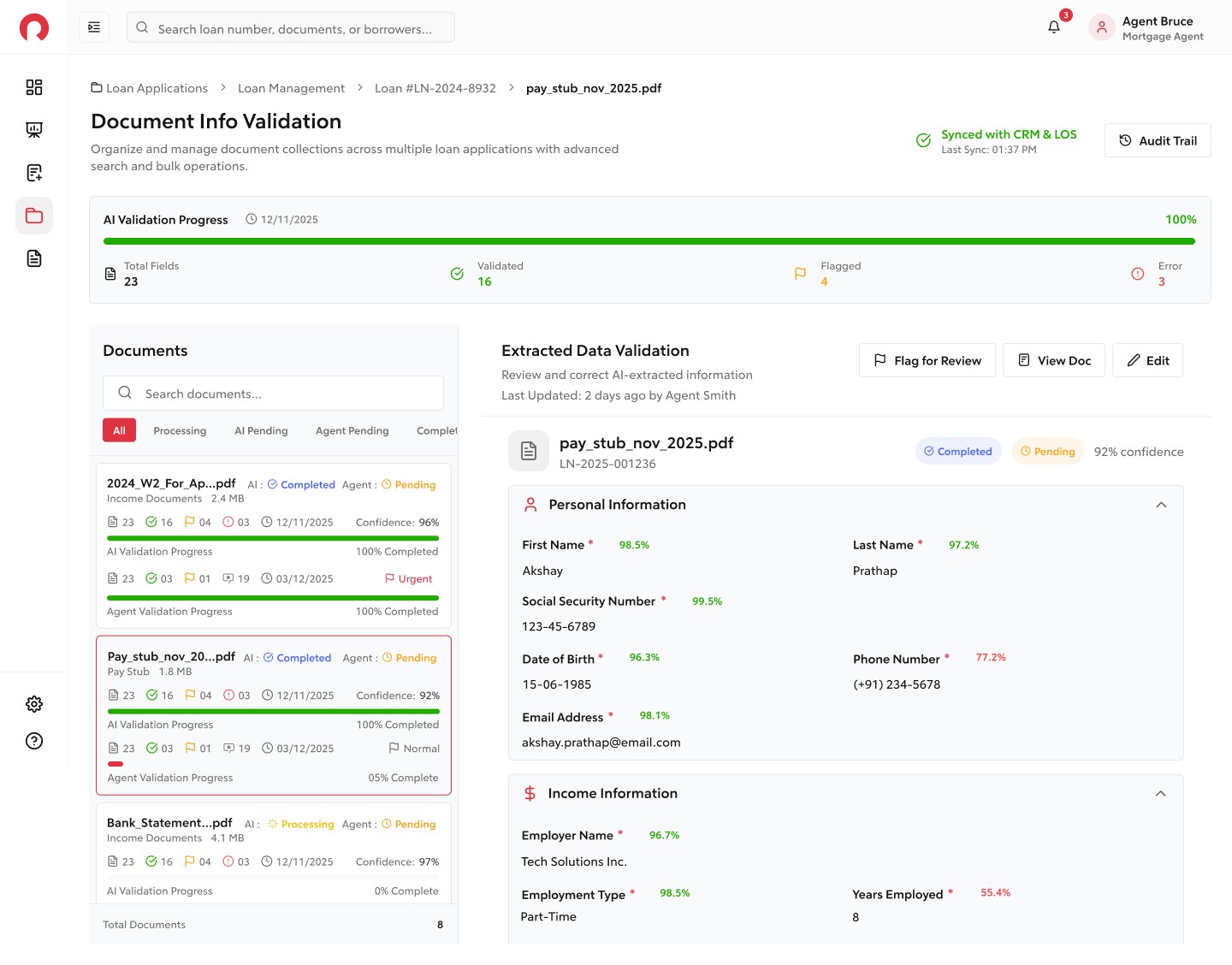
“When the agent clicks any document, they enter a 3-column view.”
Document View + Extracted Info
“The 3-column layout is designed for clarity:
Left: All documents in the loan
Middle: Document preview
Right: AI-extracted info, which is fully editable
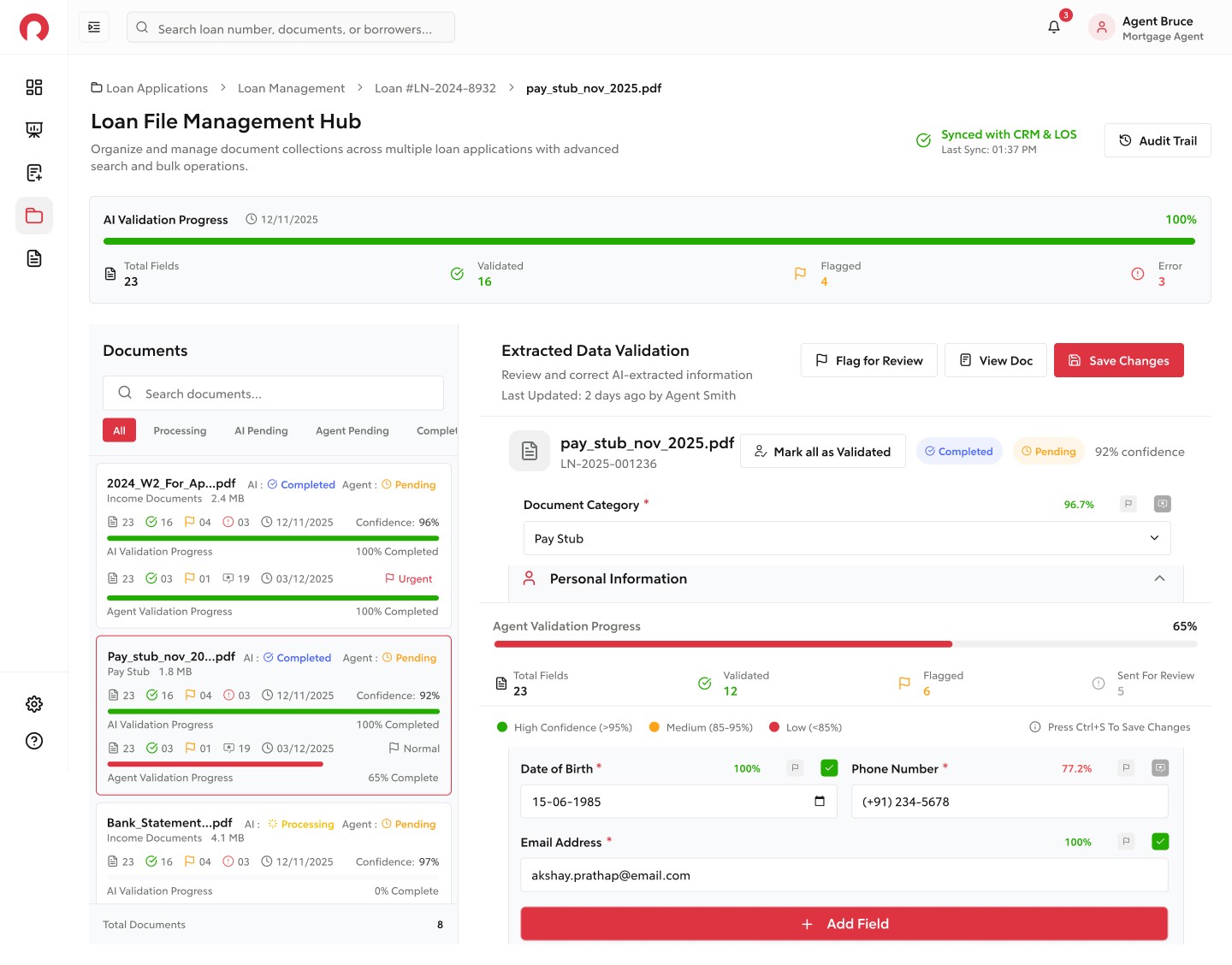
Agents can edit fields, change categories, or add comments.
This supports faster and more accurate validation.”
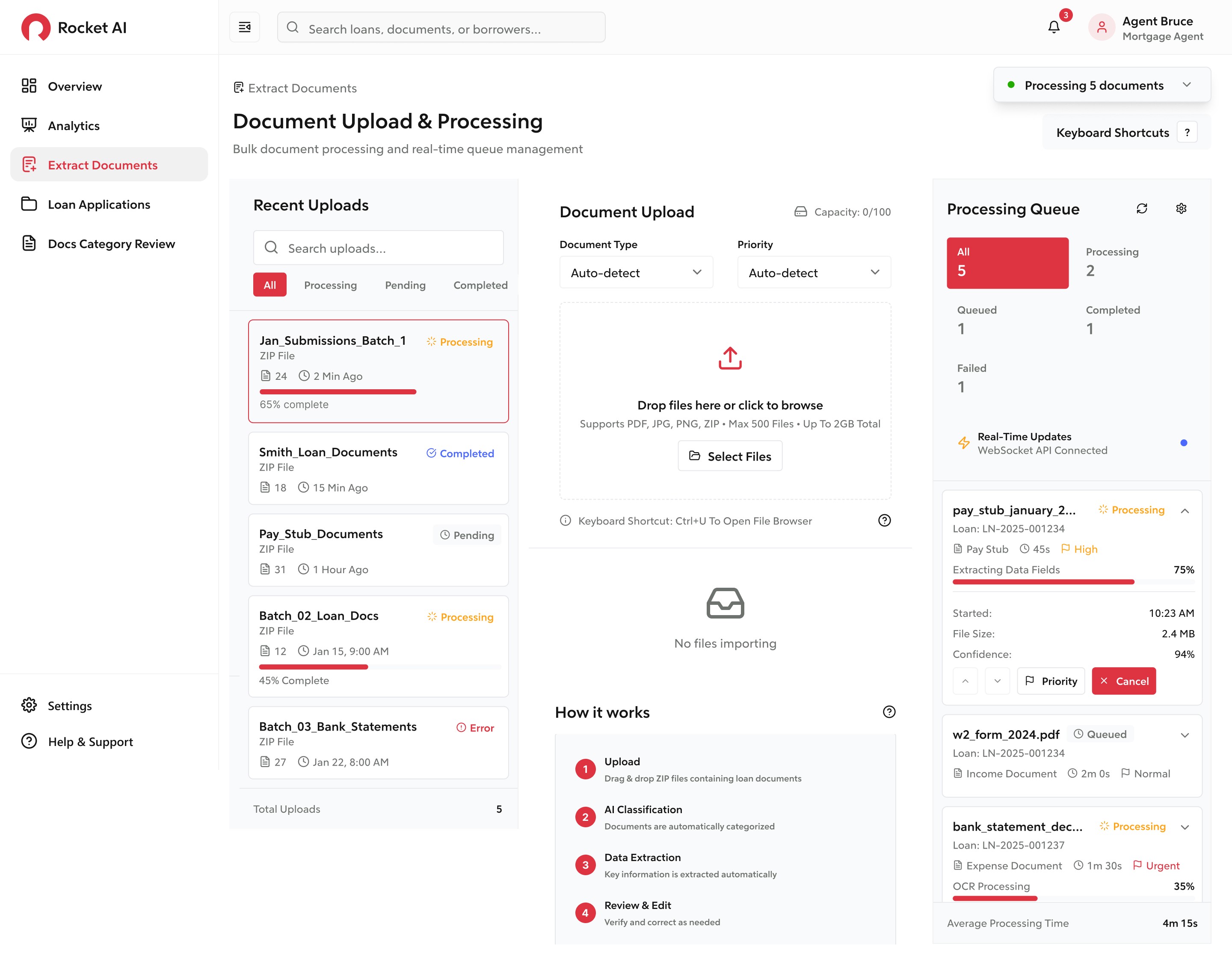
Full Validation Mode
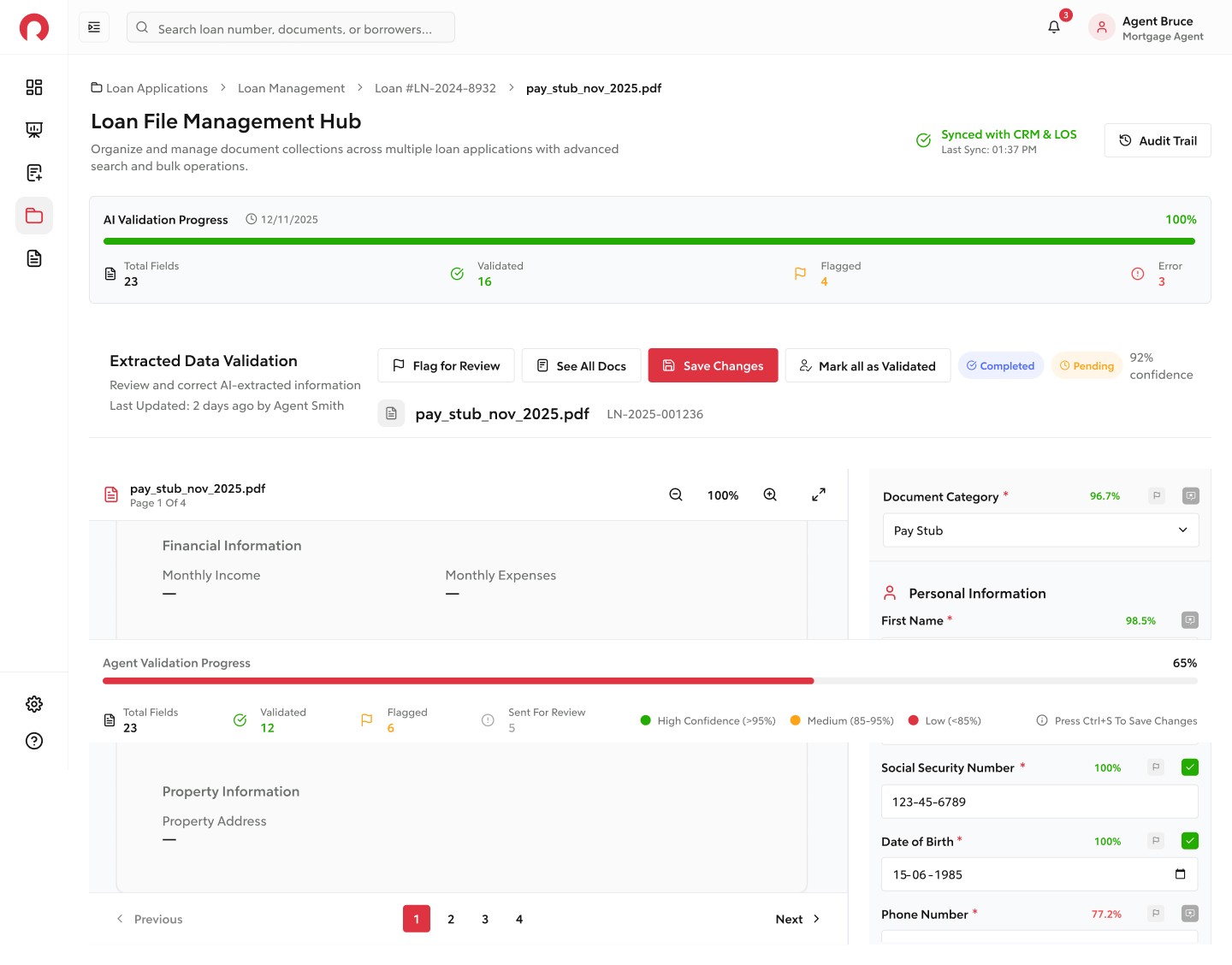
“If the agent clicks ‘View Doc,’ they enter full validation mode.
The left panel shows the entire document, and the right panel shows editable extracted data.
This mode is for detailed, high-focus review.”Multi-Doc Mode
“In ‘See All Docs,’ agents can quickly move across multiple documents.
Any piece of information they click connects directly to the relevant part of the document.
This reduces manual navigation and speeds up review.”Save Changes
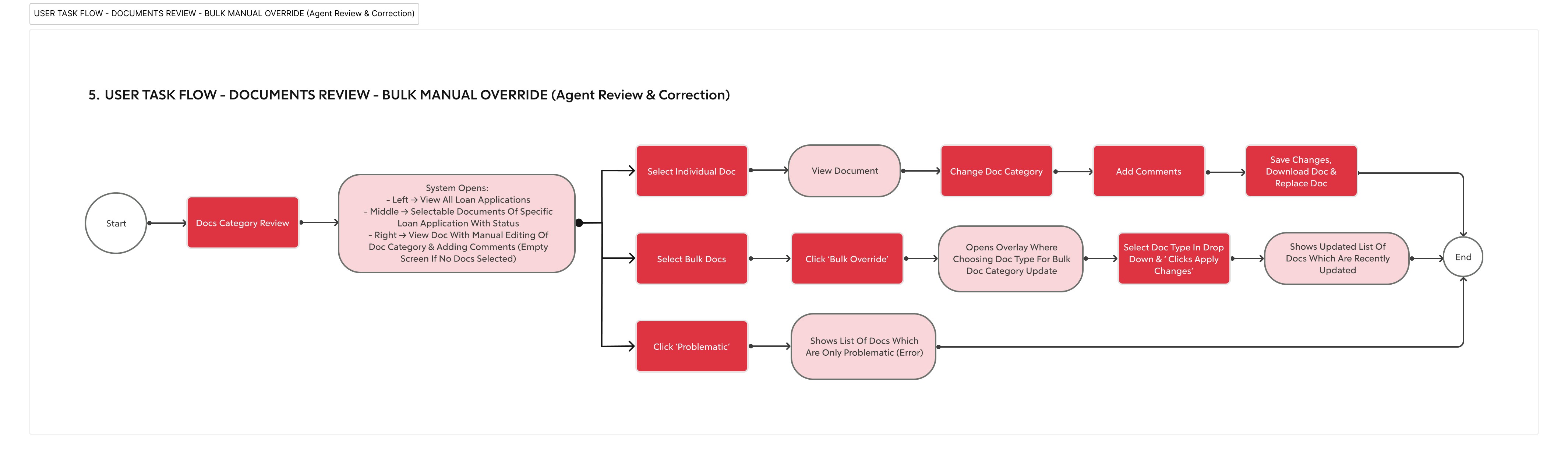
“Once everything is reviewed and corrected, the agent saves the changes.”Optional – Bulk Document Category Review
“If needed, the agent can select multiple loans and update document categories in bulk.
This is helpful for high-volume days.”Final Validation Check
“The system asks two key questions before approval:
Are all documents reviewed?
Is all data verified?
This ensures completeness.”Final Approval
“Once validated, the loan is approved and locked.”Data Sync + System Update
“Finally, the data is saved in the database, synced to the core mortgage system, and analytics get updated automatically.
This closes the loop.”Ending Statement
“In summary, this user flow supports speed, accuracy, and ease of use.
I designed it to reduce agent effort while improving compliance and data quality.
Thank you - I’m happy to walk through any screen in detail or answer questions.”User Flow Explanation
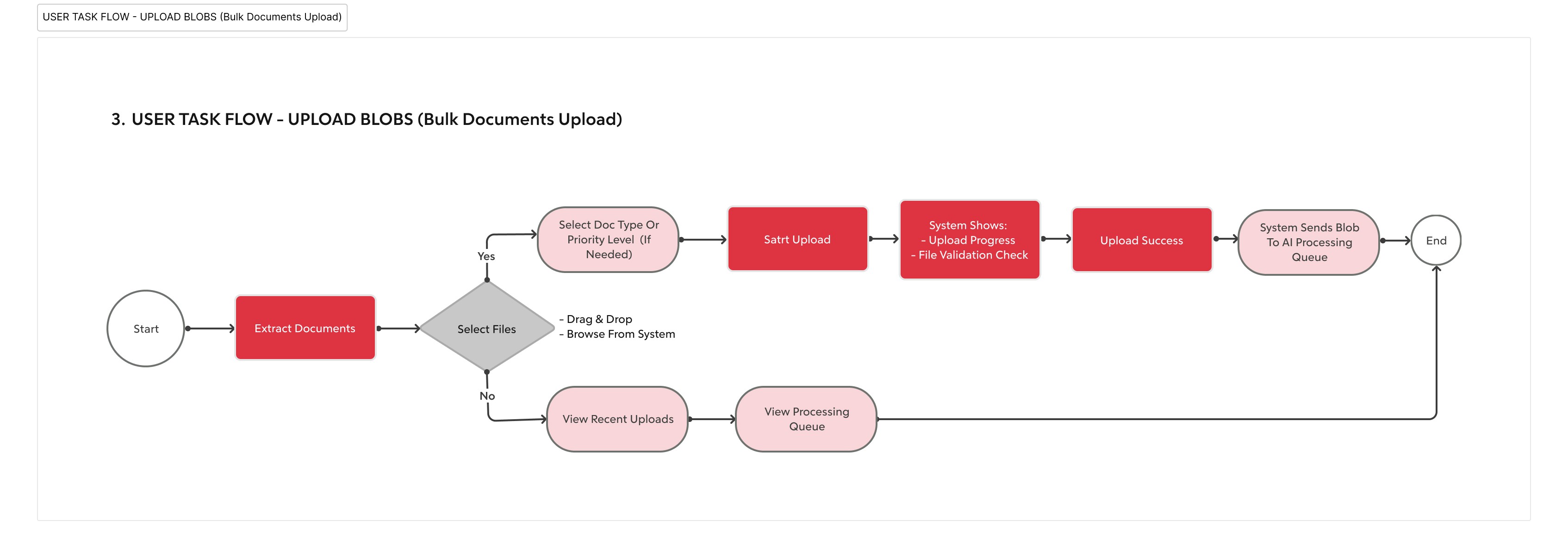
Here is the flow I created:
Upload Blob
User selects file
System validates format and size
User sees instant feedback (success/error)AI Processing
System runs AI model
UI shows progress or “Processing…”
Output appears with highlights or notes if issues are foundManual Override
If AI output is wrong, user can edit manually
They can fix names, categories, errors, or mismatches
System shows what was changedFinal Approval
User reviews the final summary
Confirms to approve
Blob moves to the next stage (publish/store/integrate)Why This Flow Works
Reduces manual workload with AI automation
Keeps users in control through manual override
Prevents errors with validation and clear statuses
Ensures transparency at each step
Makes onboarding easier for new users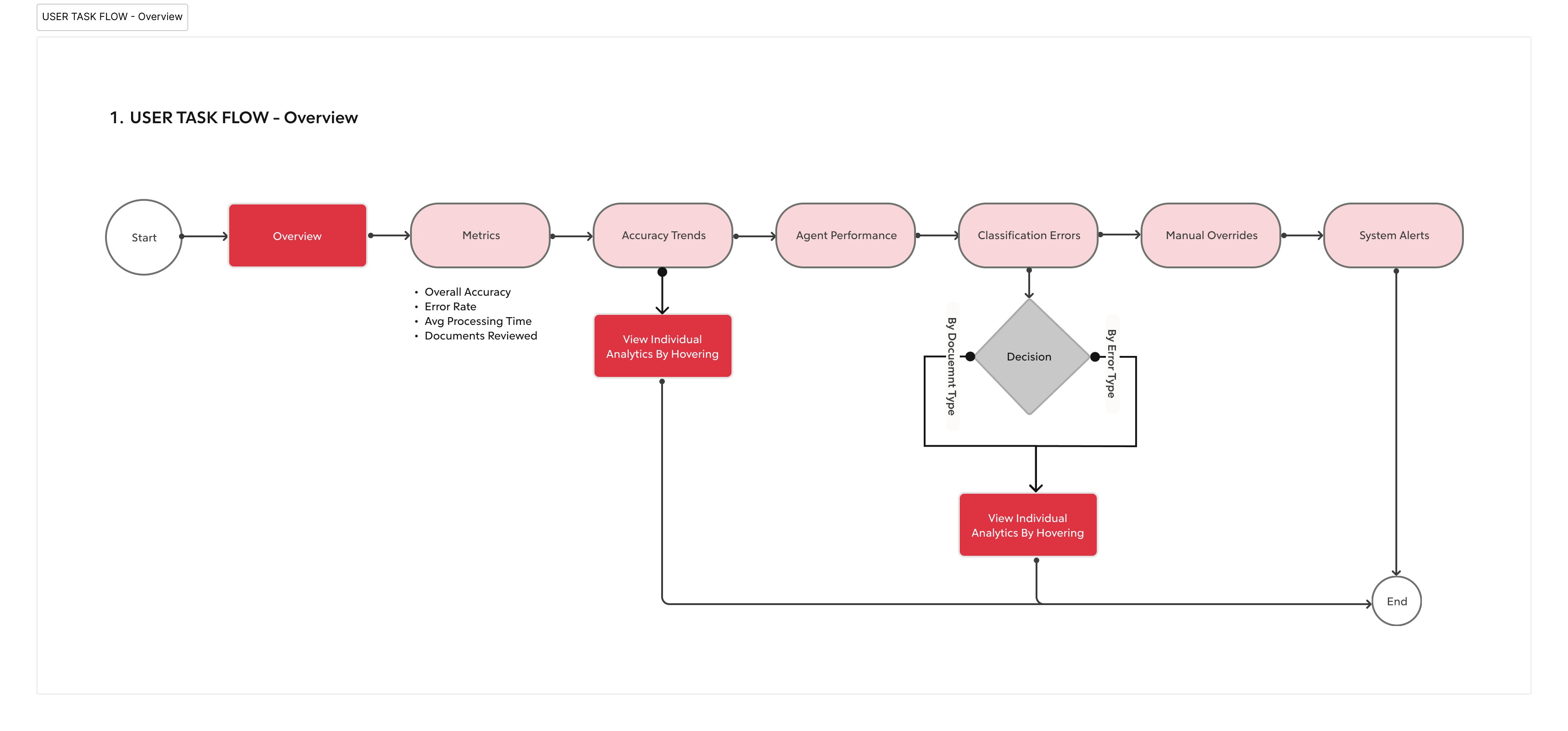

UX Improvements Added
Clear progress indicators
Inline tooltips
Easy edit mode
A single summary screen before approval
Error-prevention through warningsWhat I Would Improve Next
If I had more time, I would extend the design with:
Version history for blob changes
AI accuracy confidence score
Role-based access rules
Retry AI processing option
Conclusion :
This flow helps users complete a complex task in a simple and organized way.
It removes confusion, speeds up the workflow, and combines automation with human control.